
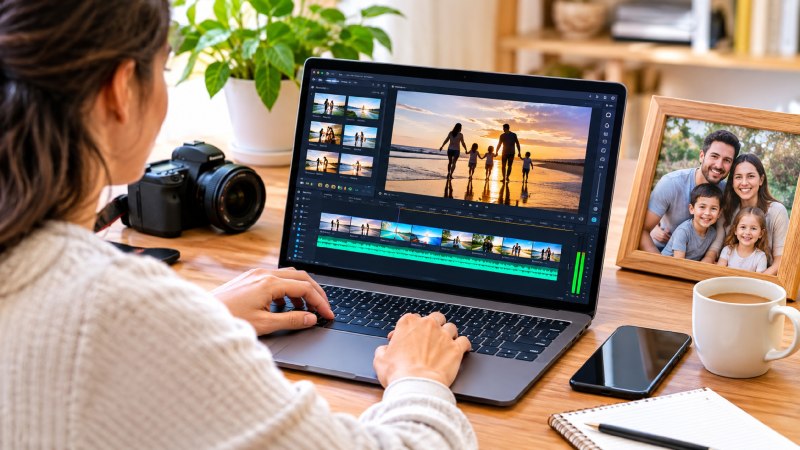
Family videos are a great way to store precious memories. Whether it be your child taking their first steps, birthdays, family trips, school time, weddings or a regular weekend. Thanks to our smartphones we can easily record some amazing memories. You may want to edit them.
Sometimes you may want to merge a few videos together, delete some parts, add some background music and add some captions with family names. Fortunately there are many free video editors available. Many of these are simple to use.
However you need to ensure that you check if the free video editor adds a watermark to your video. There is a good free video editor no watermark for beginners. If you want to save, share and view your videos on your TV then ensure that you choose a video editor which does not add a watermark.
This article will explain all you need to know about editing your family videos for free. We will look at what to look for and how to create simple videos as a beginner.
Why Edit Your Family Videos?
Often videos can be very messy. You may have too many extra clips, background noise, long periods of silence and repeated clips.Editing your videos will help you organise your videos.
Reasons to edit your family videos:
Merge Clips
When you attend a family event you may have lots of short clips. By merging the clips together you can easily create a video made up of your best clips.
For example, a birthday video including decorations, guests arriving, cutting the cake, family pictures and celebration.
Delete Unwanted Clips
You may want to delete any unwanted clips. Such as mistakes, camera movement, long periods of silence and uninteresting clips.
This will result in a shorter video which is more enjoyable.
Add Music & Captions
Adding background music to your video will help set the mood. Adding captions will help include names of family members, dates of holidays and short messages.
Adding these small details will make your personal video more meaningful.
Shareable
By editing your family videos it will make them a lot easier to share with your family and friends. You can create short videos for your messaging apps and longer videos for your family archive.
You will have a much cleaner look to your video by ensuring you export without any unwanted watermarks.
What to Look For As A Beginner
There are many different video editors. As a beginner try to find simple to use video editors.
No Watermark
Watermarks are logos/brand marks which appear on your video when exported. Some video editors add a watermark to your video in the free version.
Ensure that you check the export rules on your video editor. Some free video editors allow you to export without a watermark. Others require you to upgrade to their premium version.
Simple to Use
Finding a video editor which is easy to use will help you learn the basics of video editing.
Look for a video editor with simple buttons to help you with importing your clips, trimming, transitions and exporting.
Simple Trimming & Splitting
Trimming will help you delete any unwanted clips. Splitting allows you to split your video into sections so you can delete or rearrange parts of your video.
This will help keep your clips organised.
Add Music & Audio
Adding some background music to your video will help improve your video. However ensure that the video editor allows you to change the volume so the music is not too loud.
Add Text & Transitions
Adding text to your video will help you know who, when, where and what special occasion your video is. Adding transitions will help link your clips together.
As a beginner you will likely not need anything complex.
Correct Export Settings
Ensure that your video editor has correct settings to export. Most family videos will look great at 1080p. If your videos allow you may want to select a higher resolution.
Top 5 Family Video Editors
There are many ways to edit your family videos. Below are some great free video editors.
1. CapCut Free Video Editor
CapCut offers a range of video editing tools. However if you want something simple to use then their Free Video Editor No Watermark is a great choice.
You can edit your clips depending on the features. This can be useful for birthday videos, holiday videos, family picture slideshows etc.
Ensure that you check the rules for exporting on your current plan.
2. Microsoft Clipchamp
Clipchamp offers a simple video editor. Using the timeline you can arrange your clips, crop your clips and add text and sound.
This is perfect for simple family videos, school events and personal videos. There are also templates. You can export depending on your account and plan.
3. iMovie
If you have compatible Apple devices then iMovie is a great choice. It offers a simple way to merge and crop your clips. You can also add titles and music. It is simple to use and perfect for beginners. You can use a variety of video formats.
4. OpenShot
OpenShot is a free video editor which allows you to arrange your videos onto a timeline. You can also add sound, titles and transitions.
This is a great choice if you want to edit using your computer.
As a beginner it can take a while to get to grips with but it is simple to edit.
5. Shotcut
Shotcut is another free video editor. It offers features to handle a variety of video formats. You can crop, arrange, edit and export your videos.
Frequent Errors
- Too many transitions can make your video look too cluttered.
- If you have a long video and you ran out of takes it will become repetitive. And the people of the land were oppressed by the people of the land.
- Keep your music and background not too loud.
- Make sure that you are exporting your video in the correct resolution and format.
- Some apps will be limited to some assets/features. Make sure to check export requirements.
- Always make sure you have copies of your original takes so you can recreate or change them.
Final Words
You don’t need to spend money on expensive software to make amazing videos. Good free video editing apps help you to create very organized and edited videos. If you’ve never used video editing before you can produce great videos with a video editor. They will have easy to use functions such as editing, cutting, adding music, captions and exporting videos without watermark.
Choose an app that works for you and your device. Some are easy to use and fast to edit. Some will give you more control over special effects, and music, and transitions. Make sure to check the export option so you don’t get any extra costs like a watermark.
Start with an easy video, like a birthday montage, holiday video or family slideshow. Select some meaningful videos and cut out the parts you don’t want. Add some nice background music and simple transitions. Make sure you view your entire video and save copies of your original videos.
Above all, make your video personal. The best videos are those that capture natural conversations, real emotions and moments. Editing your random clips into a well edited video will turn them into a lasting memory.